Scrollsequence V1 Documentation
Scrollsequence allows you to create on-scroll full page image animations that are controlled with mousewheel or touch. We have made it easy for you to deliver a powerful message. Images are loaded in the background and as you scroll through the webpage they play and rewind as you scroll up and down.
We have made it easy for you to be creative. No coding required, only if you want to.
Introduction
Create your scrolling animation website directly from your video or pictures. Export images from your video application or CAD directly to the web and animate content seamlessly.
Easy integration
Available for free from the download page or from the WordPress Plugin directory. Install and activate like any other plugin.
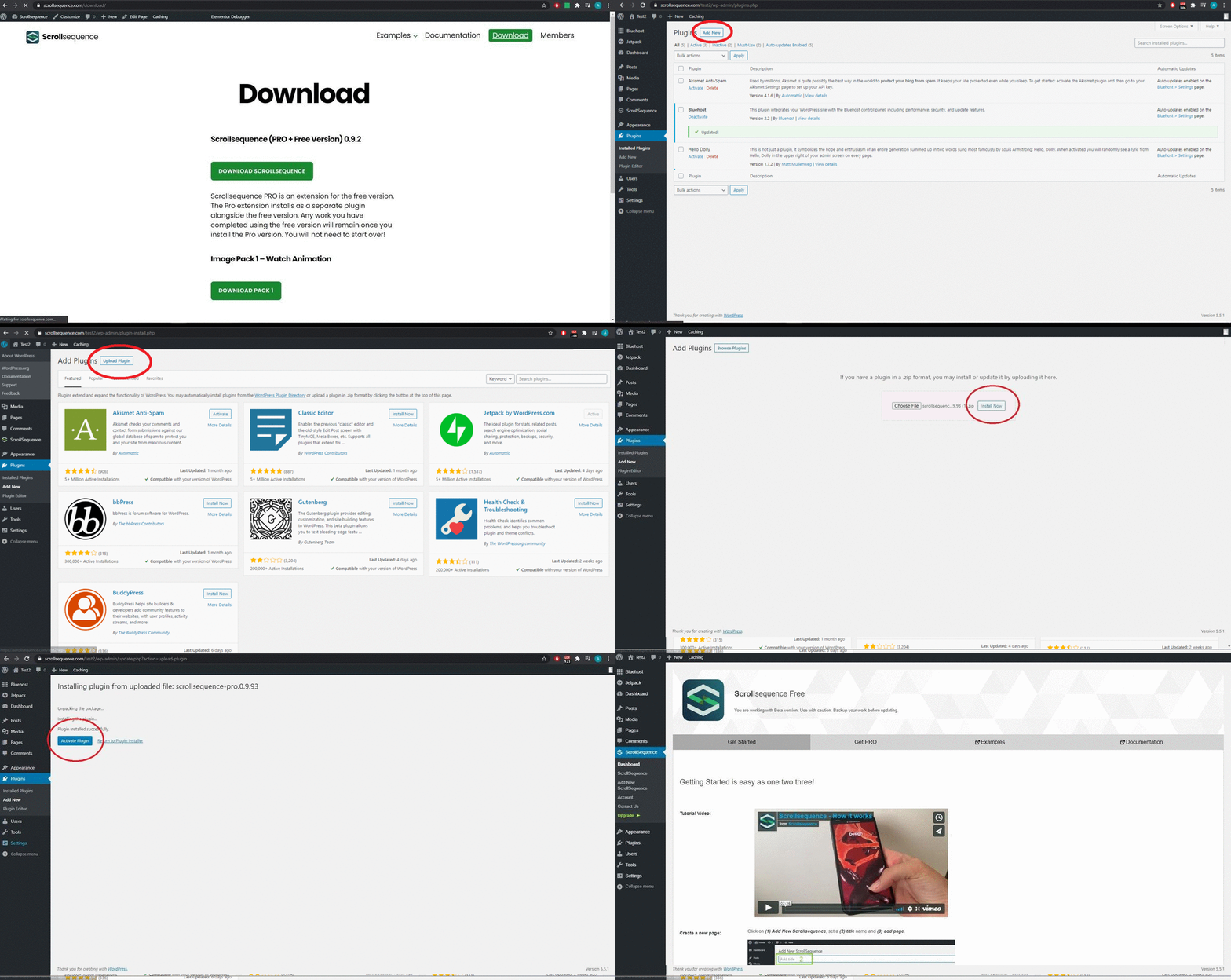
It’s recommended to download directly from our servers for the latest version.
How to get Scrollsequence?
There are two versions of the WordPress plugin available: Free, which will suit if you want something really simple but still stunning, and PRO, a full package that provides you with advanced features. We offer a 14-day free trial with the PRO version—no credit card is required, just enter your email and you will receive the license for 14 days free of charge.
- Scrollsequence Free – Get your copy from the WordPress Plugin Repository
- Scrollsequence PRO & Business – Get your copy from the Download section
Features
Free
- Fully responsive: Mobile-first responsive design.
- SEO friendly: Most search engines crawl without executing JavaScript. All content remains visible so your page can be indexed like any other.
- Image scaling: Select the scale of your image for every scene in the sequence.
- Image preloading: Images are pre-loaded in the background.
- Array customization: Display a certain image longer, loop, reverse, or bounce-back images in a few clicks.
- Limited images: For performance reasons, there is a limit on the number of images animated in the free version.
- Limited shortcode support: You can insert Scrollsequence anywhere on the page, limited to one sequence per page.
PRO
- Advanced animation: Animate HTML content using our animation presets.
- Scroll Delay: Add a scroll delay parameter to smooth out the animation.
- Animate any element: Our GSAP-powered animation engine allows you to animate any element on the page (e.g., sidebar, main menu, headers).
- Advanced preloading and caching: Images are loaded and decoded dynamically according to user interaction.
- Priority email support: Direct help from our team whenever you need assistance.
- Custom CSS: Add custom styles and functionality with complete freedom.
- Unlimited images: Add as many images as you need; GSAP ensures fluid performance.
- Full shortcode support: Insert multiple Scrollsequence animations anywhere on the page.
BUSINESS
- Cloud Media Tools: A collection of handy cloud-based media processing tools.
- Video to Image Converter: Convert source video into a sequence of images in seconds.
- AI Frame Former: Increase video framerate to 60 fps using cloud AI for ultra-smooth animations.
- WP Media Gallery Import: Import still images from your converted video directly into the WordPress Media Gallery with one click.
Compatibility
We test across different browsers, devices, and configurations. Scrollsequence runs on proven, stable JavaScript libraries and is developed according to WordPress Coding Standards .
Browser Compatibility
| Chrome | iOS (Safari) | Firefox | Android |
|---|---|---|---|
| ✅ | ✅ | ✅ | ✅ |
Page Builder Compatibility
| Elementor | Divi | Oxygen Builder | Beaver Builder |
|---|---|---|---|
| ✅ | ✅ | ✅ | ✅ |
Scrollsequence is compatible with all page builders. Simply insert the shortcode into your layout and you are good to go.
Compatibility with other themes and plugins: Contact our support if you find any conflicts with specific plugins or themes.
Live Demo
Experience Scrollsequence in action in our live sandbox:
Installation
There are several ways to install the plugin. First, download the plugin .zip file, and then upload it to your WordPress installation.
Installation Steps
-
Install Plugin
- Download the zipped plugin files from the downloads section or visit the WordPress Plugin Directory .
- Navigate to your WordPress Admin Dashboard → Plugins → Add New → Upload Plugin, select the zip file, and click Activate.
-
Activate License
- Click on Upgrade in the Scrollsequence sidebar menu.
- Select the desired plan and follow the on-screen instructions.
- Your account is accessible directly from the WordPress menu.
-
Start Creating
- Look for the Scrollsequence menu added on the left side of your WordPress admin dashboard.
Direct downloads from scrollsequence.com always contain the most up-to-date release.
Basic Use
The easiest way to start is with a sequence of images exported from a video, 3D animation software, or one of our sample image packs.
To simplify the animation and HTML element logic, each Scrollsequence is split into Scenes. Longer animations should be divided across scenes for best performance and organization.
Each scene contains its own images, content elements (text, forms, buttons, or embedded media), settings, and animation rules.
Overview
Start by clicking “Add Scene”, then attach images and content.
- Reorder scenes with drag-and-drop or via the Sort button.
- Duplicate or Delete scenes using the buttons in the bottom right corner.
1. Write Title and Add a New Scene
- Go to WordPress Admin Dashboard → Scrollsequence → Add New Scrollsequence.
- Name your Scrollsequence: Always enter a title first, otherwise WordPress cannot save your post properly.
- Add scenes as needed by clicking the ”+” button on the Scene tab.
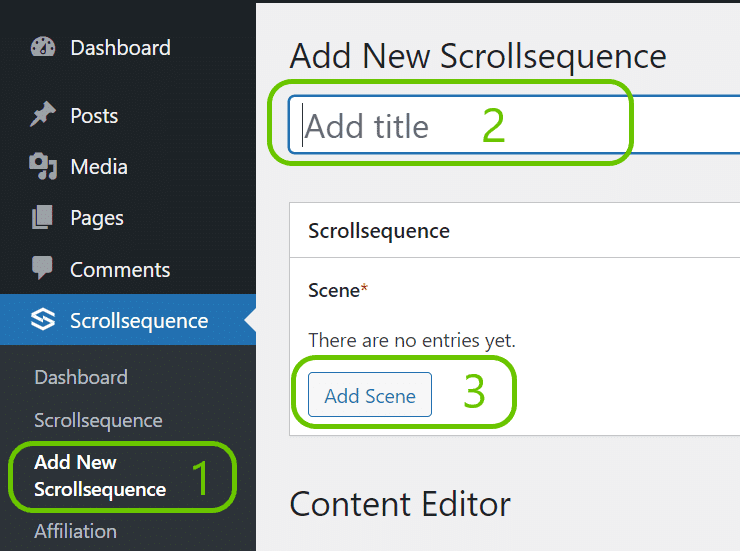
[!IMPORTANT] It is essential to write your title first, otherwise your scene cannot be saved!
2. Add Images
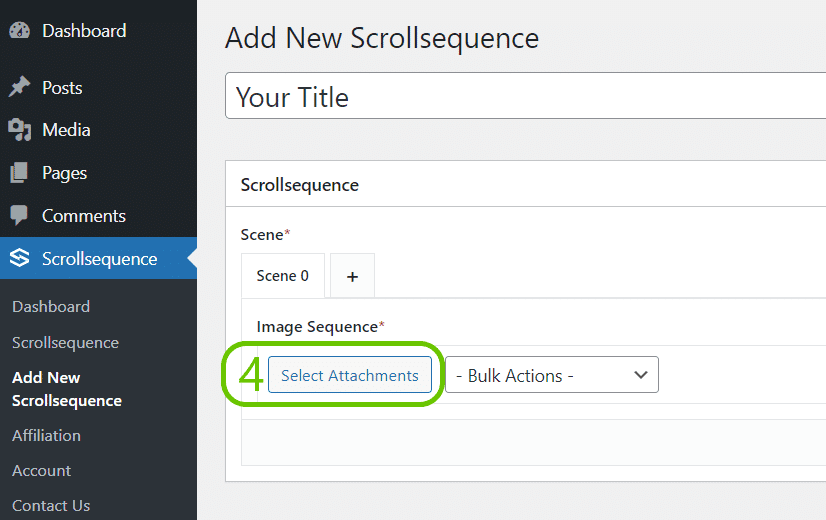
- Click on Select Images and confirm your selection. Hold down Ctrl or Shift to select multiple images.
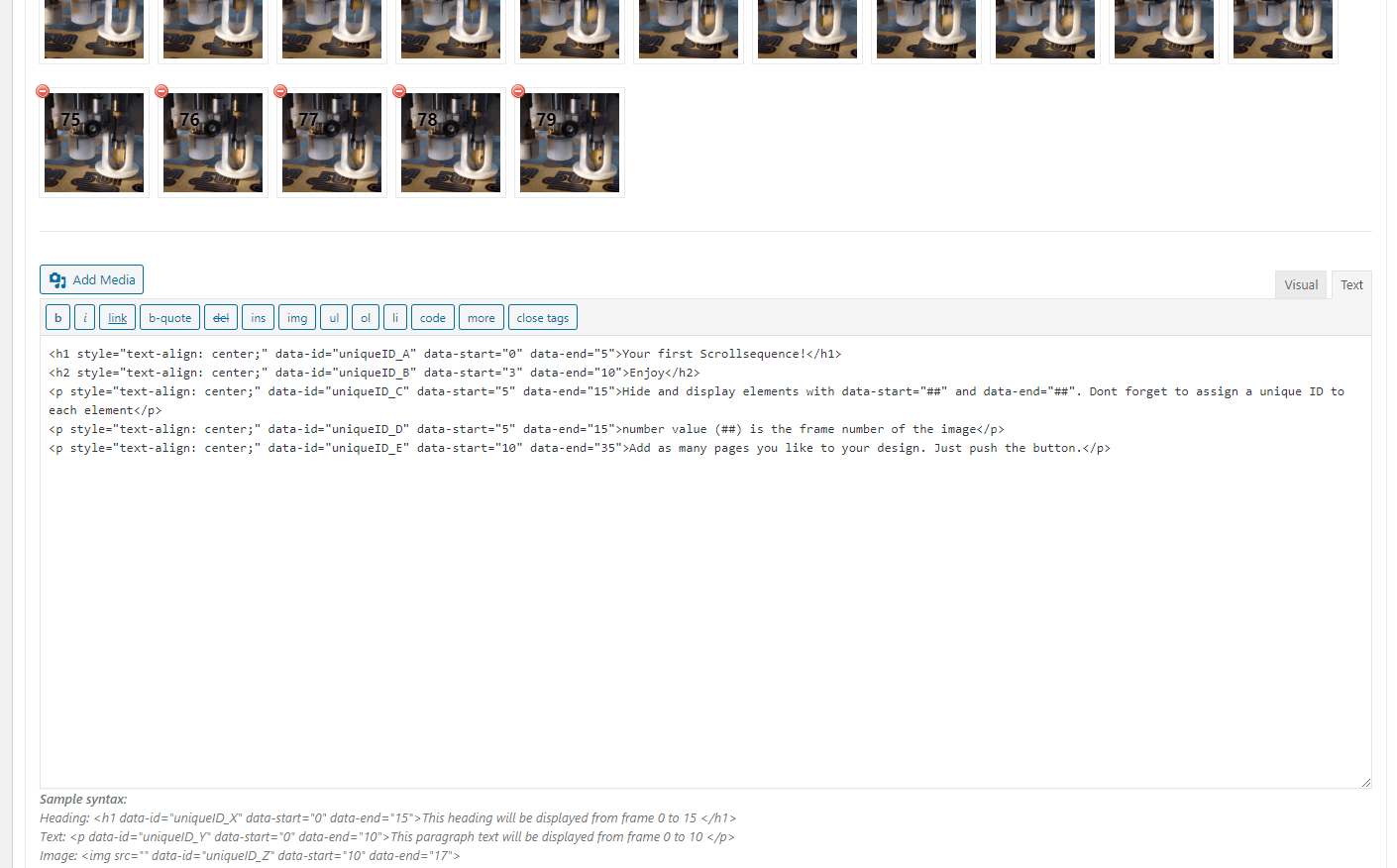
- The order in which images are chosen matters, but you can drag-and-drop images to reorder them after selection.
[!TIP] Need sample images to test? Download our pre-made packs:
Image Best Practices
- Quantity: 50–100 images per scene is a recommended starting point.
- Resolution: Sizing depends on whether you choose Scale to Fit or Scale to Fill. Start with reasonable dimensions and optimize at the end.
- Aspect Ratio: If you use one set for both mobile and desktop screens, a square or near-square aspect ratio works best.
- File Format & Weight: Lightweight images are critical. JPEG format with quality tuned to keep 1920×1080 images under 60–80 KB yields fast loading times and smooth playback.
- Scale to Fit vs. Scale to Fill: Fit guarantees the full image is visible within the viewport; Fill crops edges to ensure complete screen coverage.
3. Write Content
Use the standard WordPress TinyMCE visual/HTML editor to write scene content. It supports shortcodes, oEmbeds, custom markup, and styled typography.
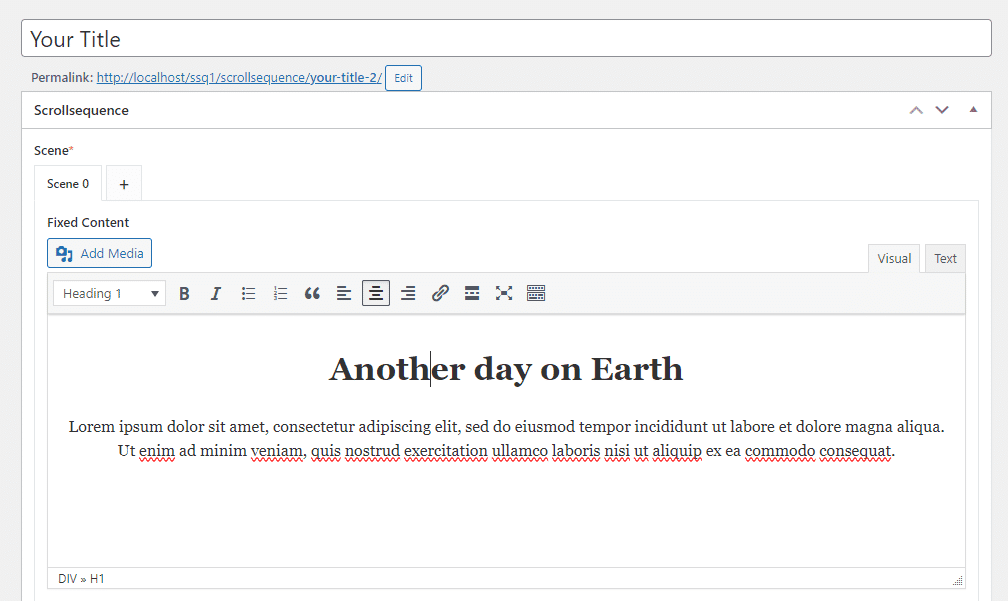
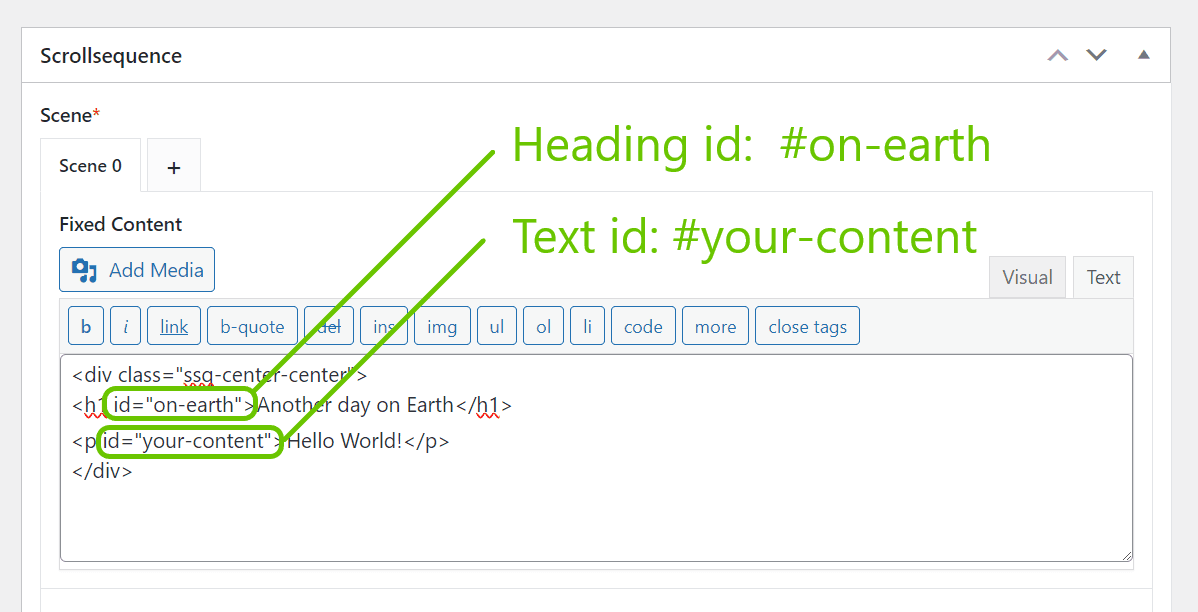
HTML content is made of elements with classes and IDs. Classes and IDs serve as selectors for your scroll-triggered animations.
4. Animate (Free Version)
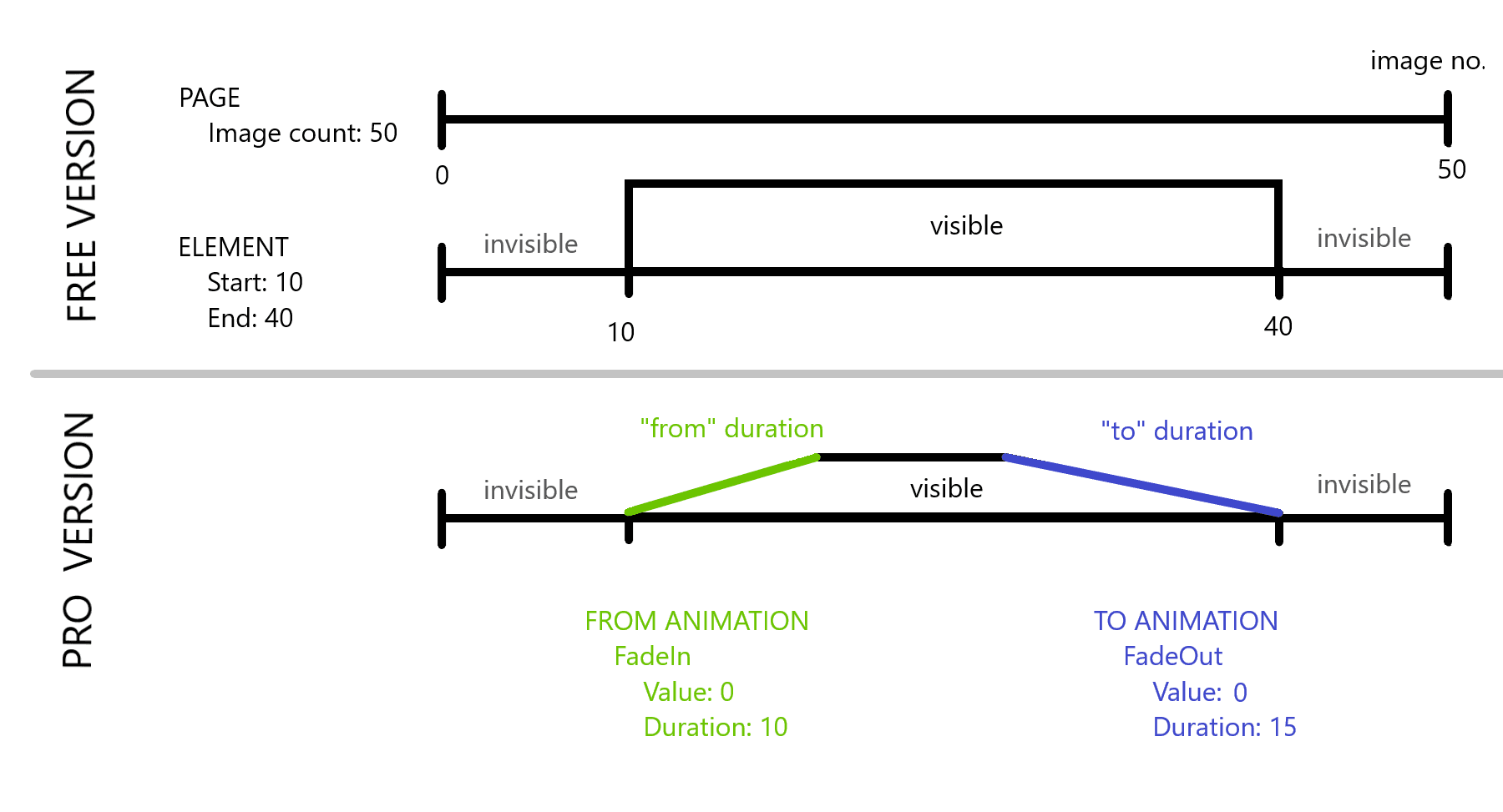
Scrollsequence uses image frame numbers instead of elapsed time. Every scene numbers its images starting from 0. As the visitor scrolls up and down, the active image index updates synchronously.
To animate an element:
- Selector: Identify the target element:
#my-id– target by ID (W3Schools ID guide ).my-class– target by Class (W3Schools Class guide )
- Start: The frame number at which the element becomes visible.
- End: The frame number at which the element hides.
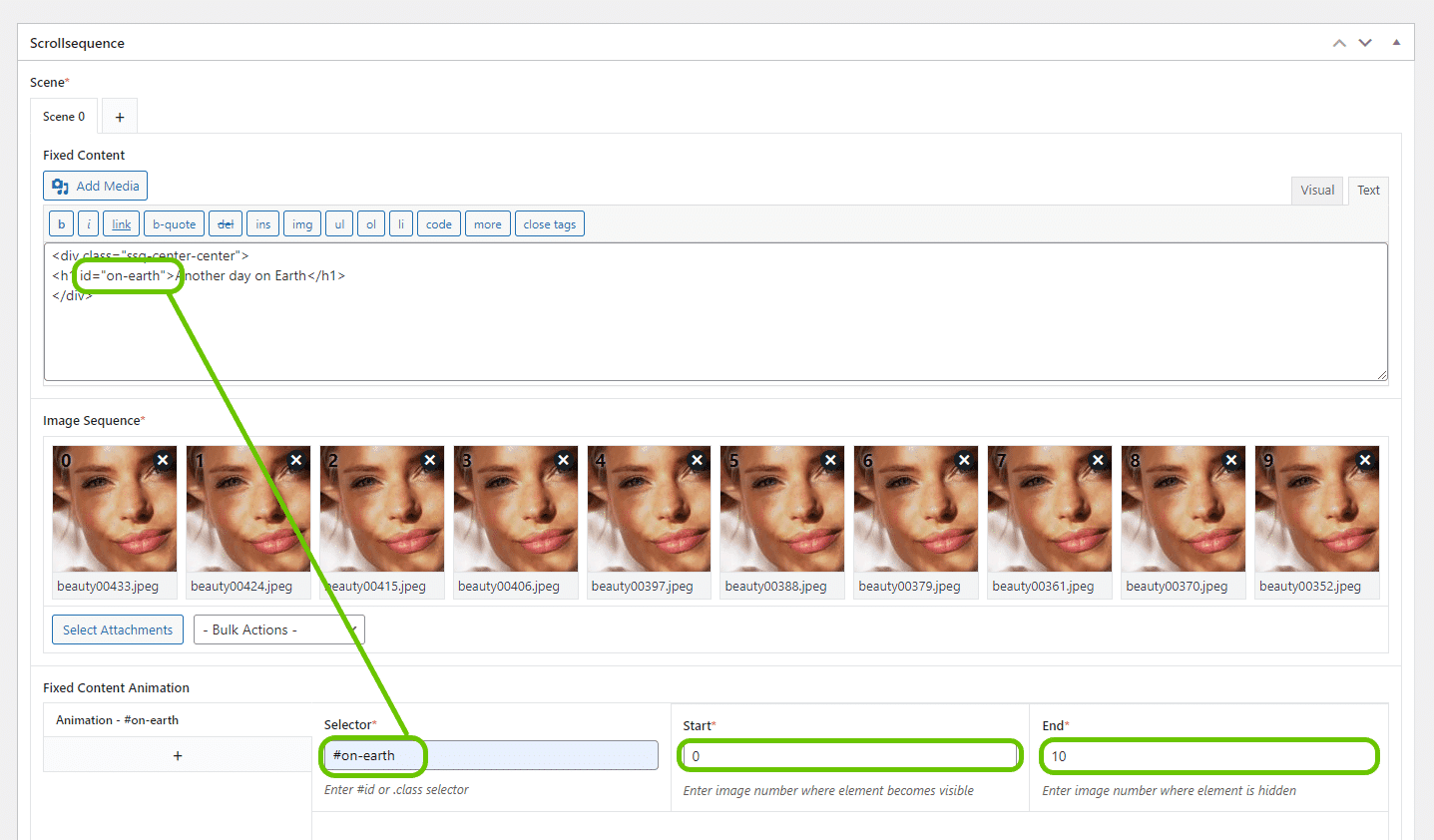
Class selectors must begin with a dot (
.), and ID selectors must begin with a hash (#).
Example: Specifying #on-earth with Start = 0 and End = 10 makes the element visible during the first 10 frames of that scene, remaining hidden otherwise.
5. Animate (PRO Plan)
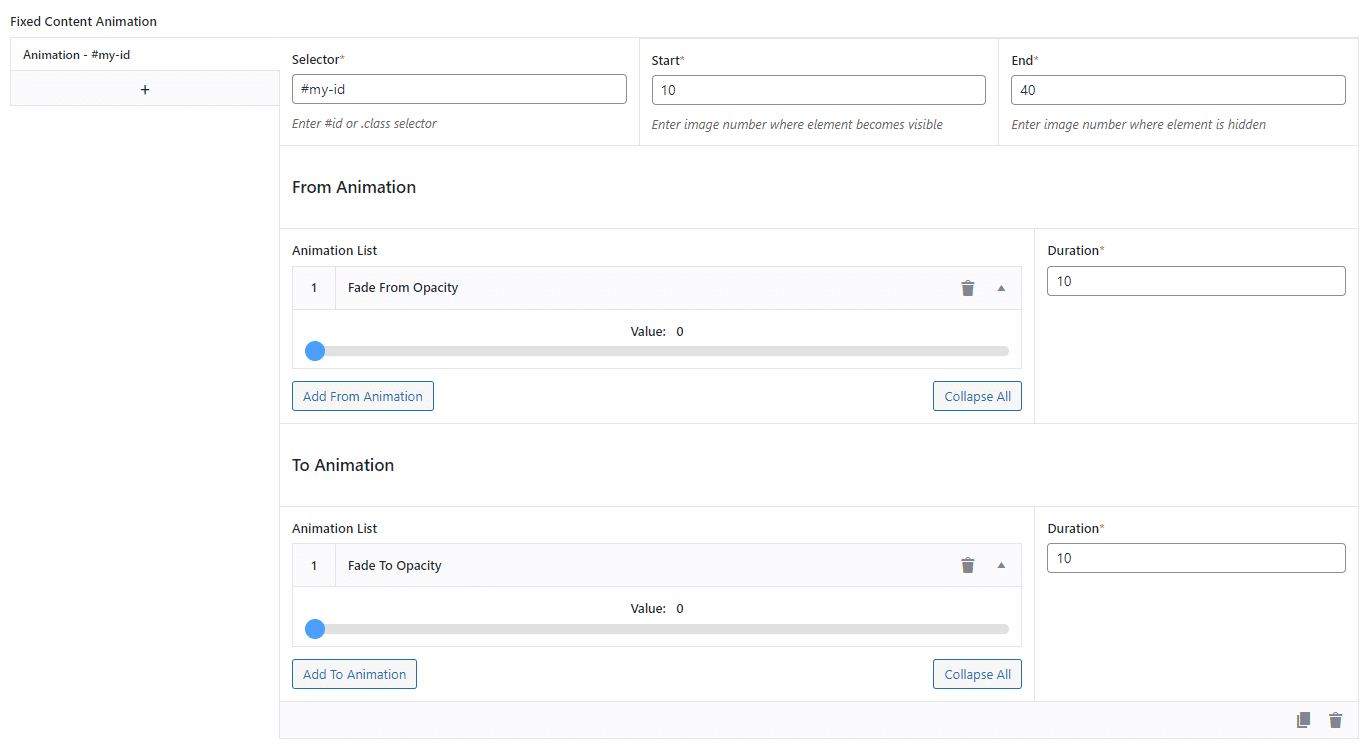
The PRO plan unlocks advanced directional and transform tweens. Selectors, start frames, and end frames are identical to the Free version, making upgrades completely seamless.
- Selector: Element class or ID.
- Start: Frame where the intro animation begins.
- End: Frame where the outro animation completes.
- From Animation: Intro transition moving forward from the start point.
- To Animation: Outro transition moving backward into the ending point.
Available Animation Types
- Fade From / Fade To: Opacity tweens between 0 and 1. Visibility is set to
noneat 0 opacity. - Move Up / Down Vertical: Moves along the Y axis using CSS percentage transforms (
yPercent). - Move Up / Down Horizontal: Moves along the X axis using CSS percentage transforms (
xPercent). - Scale: Scales the element up or down smoothly.
6. Options and Settings
Configuration is divided into Global Options (affecting all sequences site-wide) and Sequence Settings (configured per sequence).
a) Global Options
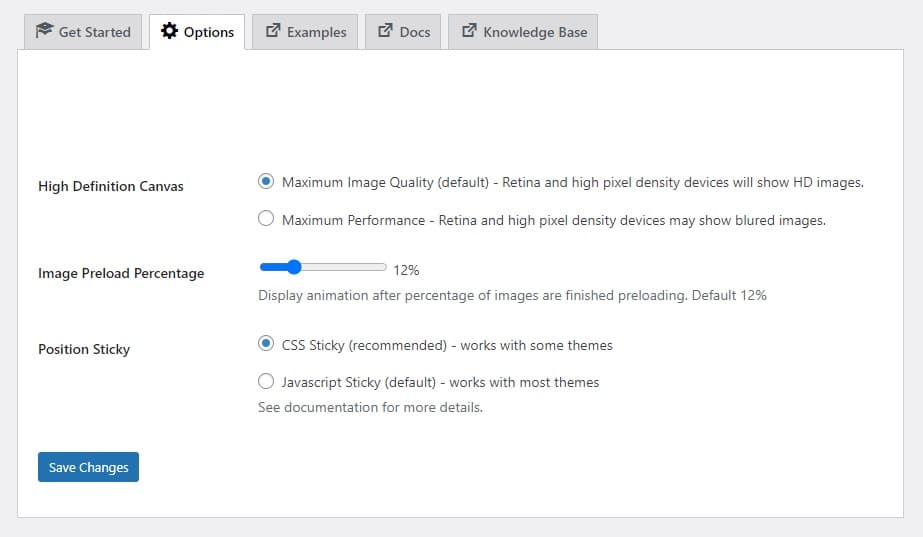
- Preload Percentage (0% to 50%): The sequence activates once this percentage of images has finished downloading. A lower percentage begins playback sooner but may cause stutter if images download slower than scroll speed.
- High Definition Canvas: Maximum Image Quality utilizes
window.devicePixelRatiofor razor-sharp rendering on Retina displays. Maximum Performance uses standard viewport dimensions without the device pixel ratio multiplier. - Position Sticky (CSS Sticky | JavaScript Sticky): CSS Sticky delivers optimal performance on modern browsers. JavaScript Sticky provides fallback support for themes with conflicting
overflow: hiddenrules.
b) Sequence Settings
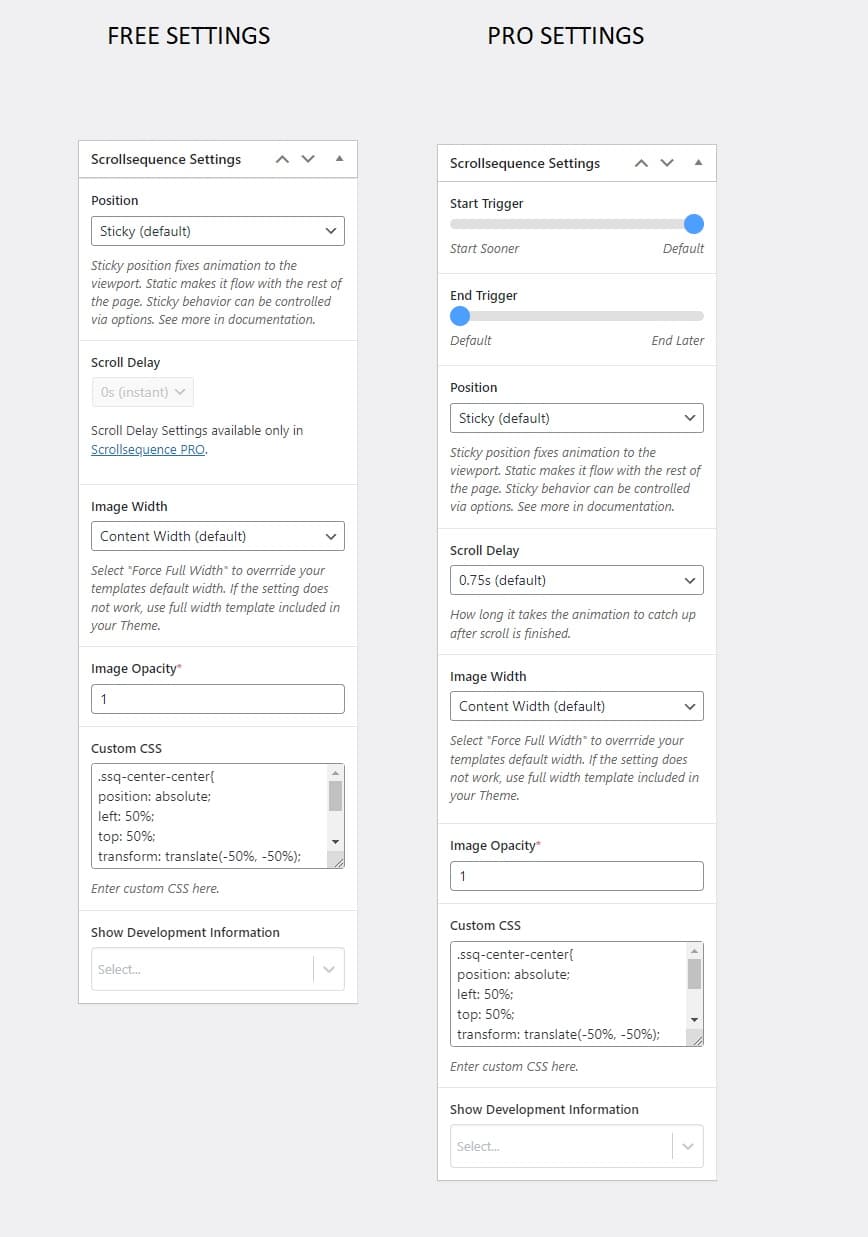
- Position (Sticky | Absolute | Static): Sticky (default) anchors the sequence to the screen during scroll. Absolute removes it from document flow. Static scrolls normally with page content.
- Start Trigger (Sooner | Default): Determines whether playback begins when the container first enters the viewport or once fully visible.
- End Trigger (Default | Later): Controls whether playback completes when leaving the screen or continues until fully scrolled past.
- Scroll Delay (0s to 3.5s): Adds momentum damping to smooth fast wheel flicking.
7. Shortcode – Add Scrollsequence Anywhere
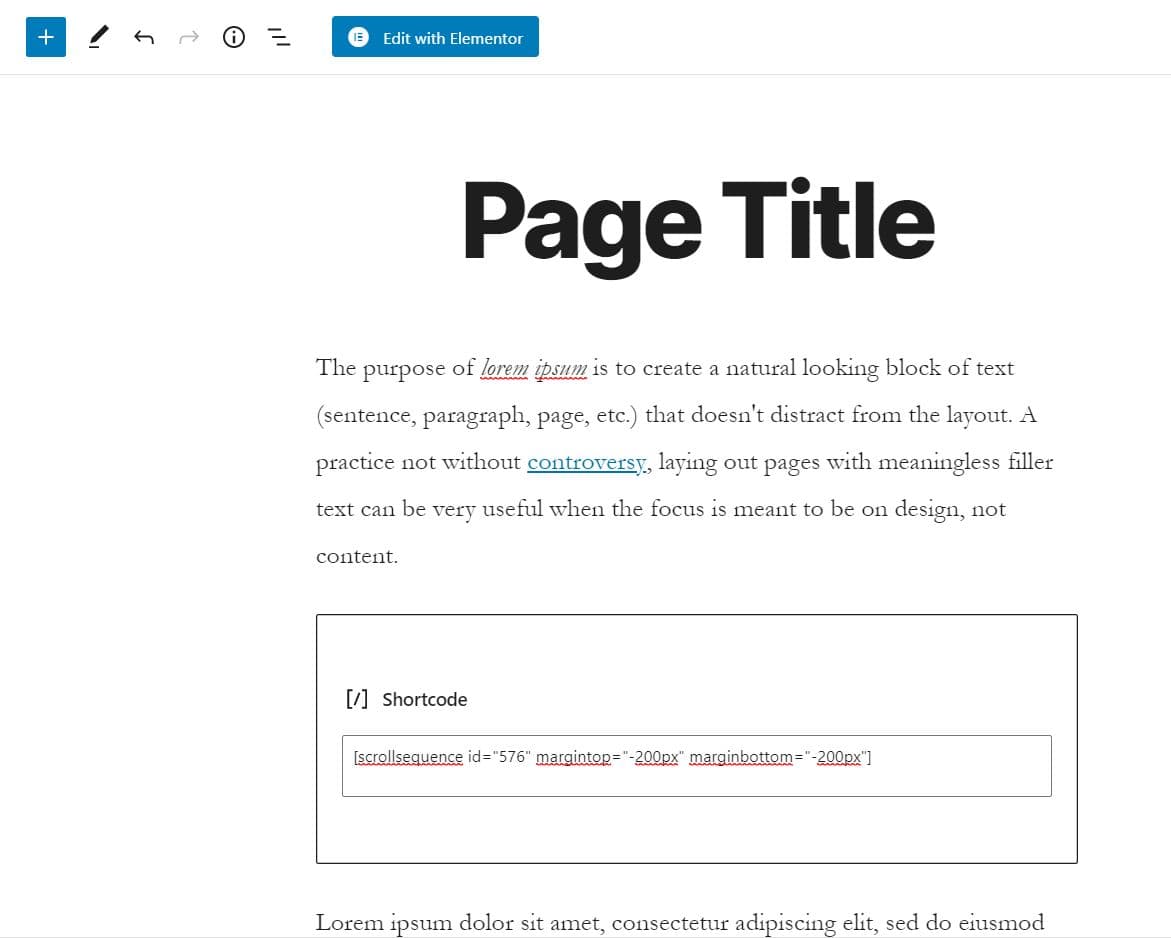
Insert your animation into any page, post, or builder template using the shortcode:
Shortcode Attributes
id: (Required) The Scrollsequence post ID from the dashboard list.margintop: (Optional) Spacing (positive) or negative overlap at the top (e.g.margintop="-200px").marginbottom: (Optional) Spacing or negative overlap at the bottom (e.g.marginbottom="-200px").hide: (Optional) Device conditions under which the sequence should not render. See Device Visibility Rules.
Examples
[scrollsequence id="1234"]
[scrollsequence id="1234" margintop="-150px"]
[scrollsequence id="1234" marginbottom="-150px"]
[scrollsequence id="1234" hide="isMobile"]
When using
[scrollsequence]without anidinside a Scrollsequence Custom Post Type template, it automatically renders that post’s animation.
8. Duplicate Scrollsequence
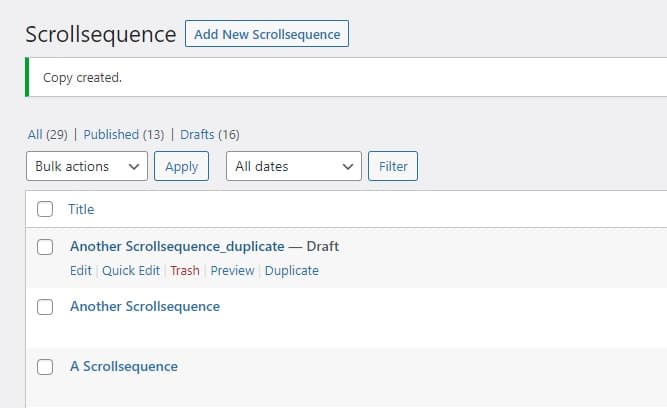
Duplicate any Scrollsequence with a single click. A new draft copy will be created containing all scenes, media assignments, settings, and animations—ideal for translations, A/B testing, or backups.
Advanced Use
Image Preload Event
If you use an external site preloader, hook into the ssqPreloadPercentage JavaScript event to synchronize loader dismissal with image readiness:
// Listen for preload completion
document.addEventListener('ssqPreloadPercentage', function (e) {
  console.log('Scrollsequence preload percentage met');
}, false);
[!TIP] Place this script in your header before
ssq-lib*.jsloads so the event listener is registered prior to initial firing.
Media Tools
The Scrollsequence Business plan includes built-in cloud media utilities to prepare image sequences from video files without third-party software.
Start Business Plan Free Trial
14-day free trial. Cancel anytime before trial period ends.
Video Convert
Converts uploaded video files into individual frames and directly imports them into your WordPress Media Gallery.
- File Prefix: Specify naming format (e.g.,
frame-00001.jpg,frame-00002.jpg). - Quality: Select between Aggressive (lowest file size), Optimal (balanced compression), or Original.
- Maximum Resolution: Choose Downsize (scales down above 1920px for web efficiency) or No Resize (preserves full 4K resolution).
AI Frame Former
Powered by AWS Elemental MediaConvert Frame Former machine learning algorithms, this tool synthesizes intermediate frames to boost your video up to 60 fps for silky-smooth scroll animations.
- File Prefix: Set output name prefix for generated assets.
Examples
Explore working demonstrations built with Scrollsequence:
Example 1 – Cyberpunk
Explore the dynamic cyberpunk product showcase:
View Cyberpunk Demo
Example 2 – Beauty
See delicate color grading and cosmetic transitions:
View Beauty Demo
Read Beauty Tutorial Article
Example 3 – Watch
Watch the step-by-step video breakdown:
External Tools
Recommendations for preparing your imagery:
Converting Video to Image Sequence
- Scrollsequence Video Convert: Built right into the plugin (learn more).
- Adobe Premiere Pro: Professional video editor with image sequence export.
- VLC Media Player: Free open-source player capable of exporting video frames:
- Onlineconverter.com: Quick web-based converter (onlineconverter.com/video-to-jpg ).
Image Optimization
Keeping image sizes under 80 KB ensures instant playback without buffering.
[!WARNING] 3rd Party Image Optimization Plugins: Some caching and optimization plugins delay or alter canvas image loading. If frames fail to appear, temporarily disable third-party lazy-loading or image rewriting plugins to diagnose.
Video Tips
- Avoid Motion Blur: Standard video relies on motion blur, but scroll sequences look crisper with fast shutter speeds.
- Depth of Field: Be mindful of shallow focus; scrolling animations emphasize details that stay sharp throughout the move.
- Framerate: 25 fps is standard. If footage appears choppy during rapid motion, convert to 60 fps using the AI Frame Former.
3D Model Animation
Export turntable renders directly from CAD packages such as Autodesk Inventor, PTC Creo, or SolidWorks, or render keyframes in Blender or 3ds Max.
Responsivity
Scrollsequence continuously evaluates orientation (landscape vs. portrait) and viewport dimensions. You can configure distinct scale and alignment rules for Desktop and Mobile on every scene.
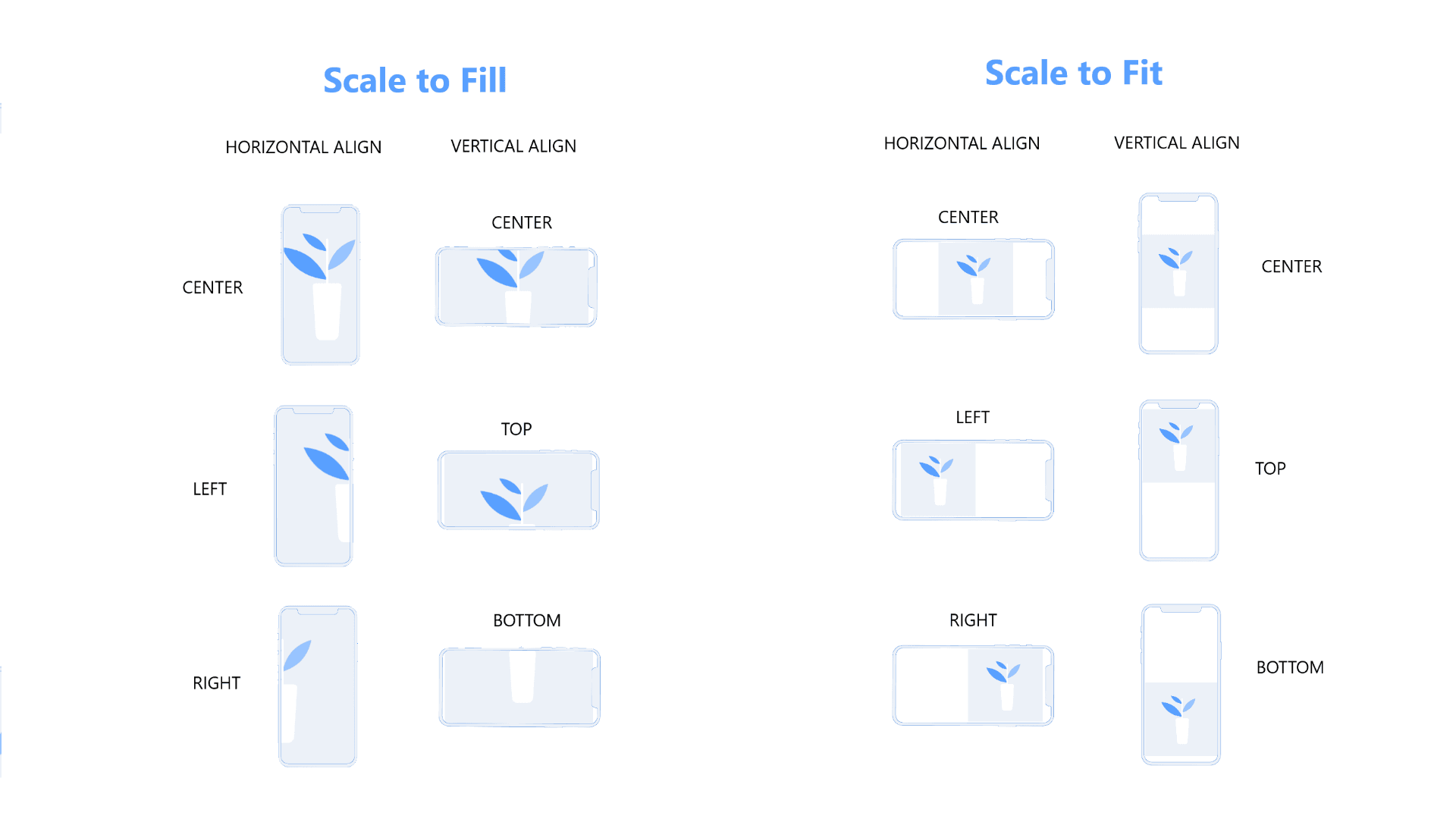
Image Scale
- Scale to Fill: (Default) Fills the full width and height while maintaining aspect ratio, cropping edges where necessary.
- Scale to Fit: Scales the image so all edges fit within the viewport without cropping.
Image Alignment
- Horizontal Alignment: Center (default), Left, or Right.
- Vertical Alignment: Center (default), Top, or Bottom.
Window Resize
On every window resize event, the canvas recalculates coordinates and re-renders the current frame to adhere strictly to W3C responsive standards.
Hide Scrollsequence On Mobile, Tablet Or Operating Systems
Use the hide shortcode parameter to disable loading on selected viewports or platforms:
isMobile | isNotMobile | isLaptop | isNotLaptop | isPhone | isNotPhone | isiOs | isNotiOS | isAndroidOs | isNotAndroidOS
Examples
# Mobile:
[scrollsequence id="123" hide="isMobile"]
[scrollsequence id="123" hide="isNotMobile"]

# Tablet:
[scrollsequence id="123" hide="isTablet"]
[scrollsequence id="123" hide="isNotTablet"]

# Phone:
[scrollsequence id="123" hide="isPhone"]
[scrollsequence id="123" hide="isNotPhone"]

# iOS:
[scrollsequence id="123" hide="isiOs"]
[scrollsequence id="123" hide="isNotiOs"]

# Android:
[scrollsequence id="123" hide="isAndroidOs"]
[scrollsequence id="123" hide="isNotAndroidOs"]
Opening Chrome DevTools with device emulation sets
isMobile === true. Keep this in mind when debugging pages withhide="isMobile".
Common Issues
Image Sequence Is Not Displayed
- Check Canvas Width: Inspect
<div id="scrollsequence-canvas">in your browser DOM. Its computed width must be greater than zero. If embedded in a flex/fluid container with zero initial width, assign an explicit CSS width (e.g.,width: 100%). - Shortcode Duplication: Ensure caching plugins or builder widgets are not executing the shortcode multiple times.
Cannot Save Scrollsequence
Verify that every scene has a valid title, duration, and selector configuration. Leaving required fields empty can prevent WordPress from saving scene metadata.
Cannot Save More Than A Few Hundred Images
WordPress limits the number of POST variables per request. Navigate to:
WordPress Admin → Tools → Site Health → Info → Server
Ensure PHP max_input_vars is set high enough (e.g. 3000 or higher) to accommodate large image lists.
Animation Starts or Ends Too Soon or Jumps
If page layout changes dynamically (due to lazy loading, accordion expansions, or asynchronous fonts), call the following JavaScript trigger after DOM reflow:
ScrollTrigger.refresh();For more details, refer to the knowledge base article on jumping and scroll triggers .