Canvas 2D Block
The Canvas 2D block is a powerful Gutenberg block for creating image sequence animations. It can be standalone, or nested inside a Scene or Container blocks.
When nested inside a Scene block, the triggers and smoothness settings of the parent block control the animation.
Getting Started
Adding the Block
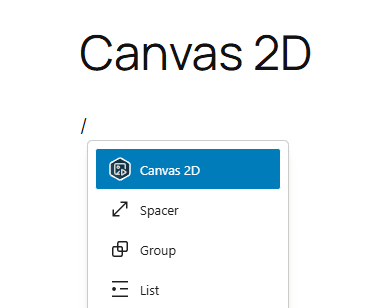
- Open the WordPress block editor.
- Type
/to and search for Canvas 2D and add it to your page.
Basic Setup
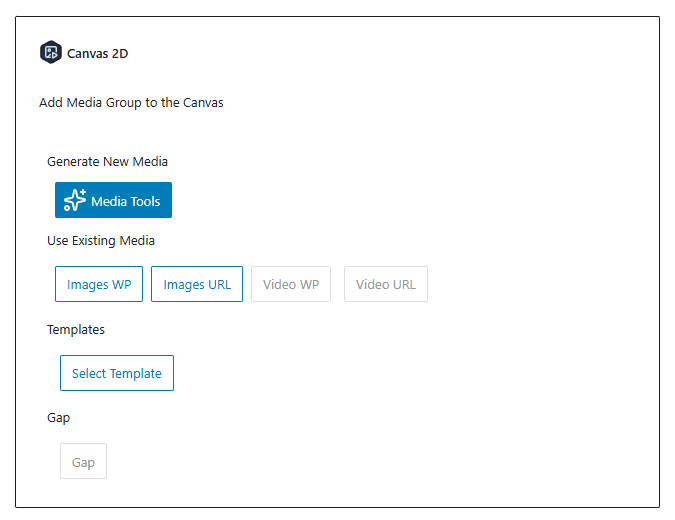
You have a few options to add media to the Canvas 2D block:
- Generate new media using the Media Tools.
- Use existing media from the WordPress media library or external URLs.
- Add media from Template library.
Template library loads the images from our CDN. Do not use it for production sites and always replace the images with your source.
Settings Panel Overview
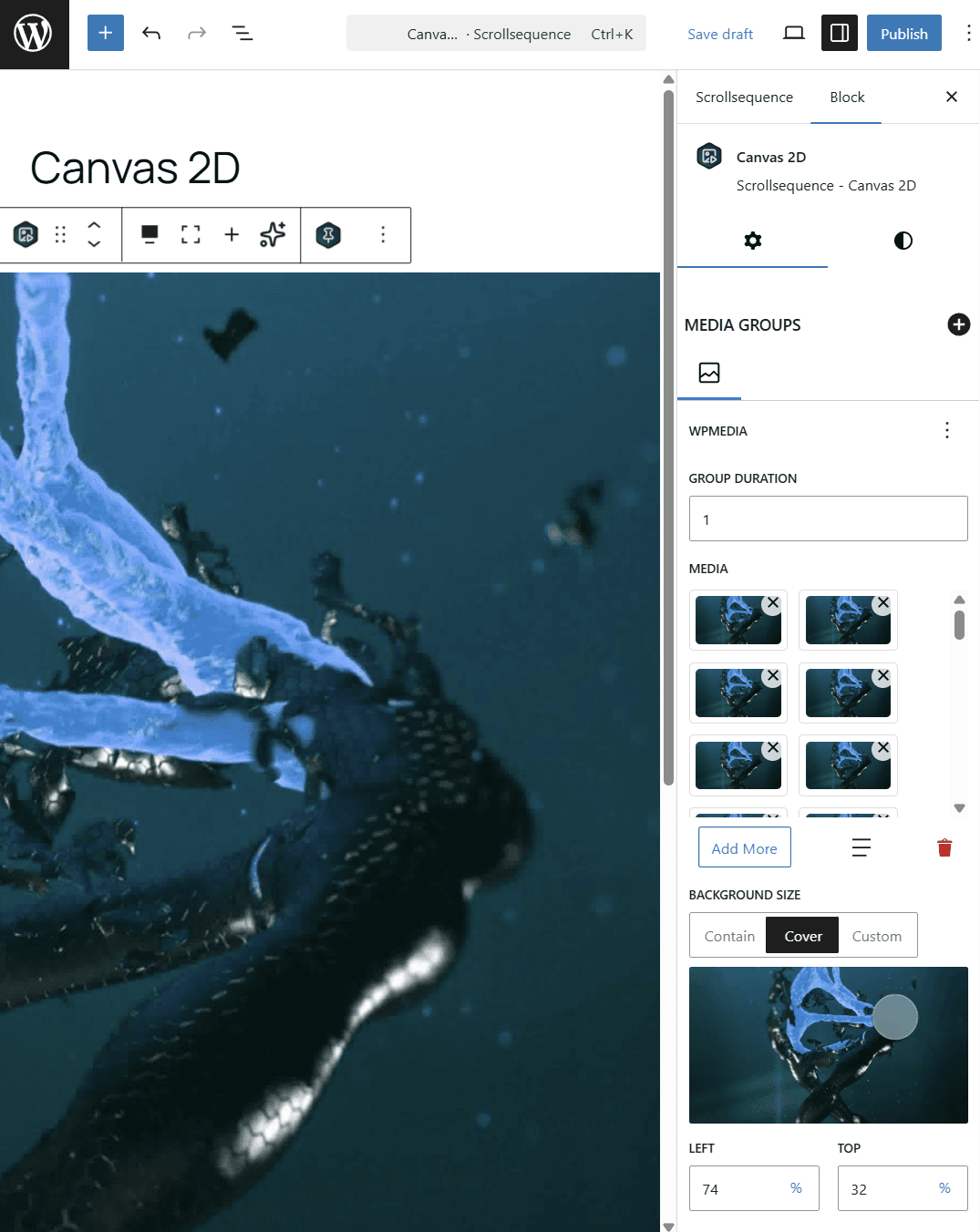
Media Groups
The Canvas 2D block allows you to add multiple media groups, each containing a set of media items.
Each media group can be of the following types:
- WP Media Images: Select images from the WordPress media library.
- URL Image List: Provide a list of image URLs.
- WP Media Video: Select a video from the media library. coming soon
- Video URL: Provide a video URL. coming soon
- Gap: Insert a pause or empty space in the animation. coming soon
Media Group Settings
- Reorder Clik on ”…” icon to reorder, duplicate or delete the media group.
- ScrollWeight: Set how long the media group lasts in the animation relatively to other media groups.
- Media Add, replace, sort, or remove images/videos in the group.
- Background Size: Choose how the media fits in the canvas (
Contain,Cover, orCustom). - Focal Point: Adjust the focus area of the media.
Animation Trigger Settings
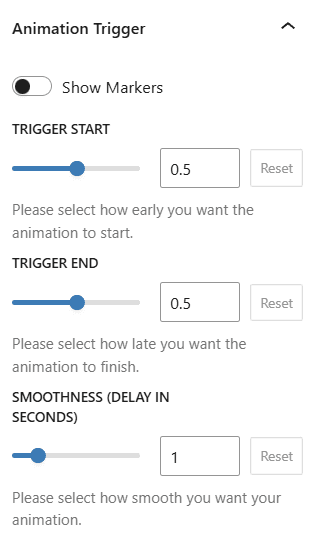
When used standalone, the Canvas 2D block provides its own animation trigger settings to control when the animation starts and ends based on scroll position. When nested inside a Scene block, the triggers and smoothness settings of the parent block control the animation.
- Show Markers: Toggle visual markers for debugging.
- Trigger Start/End: Set how early or late the animation begins/ends.
- Smoothness: Control the animation’s delay for a more fluid effect.
Styles Panel Overview
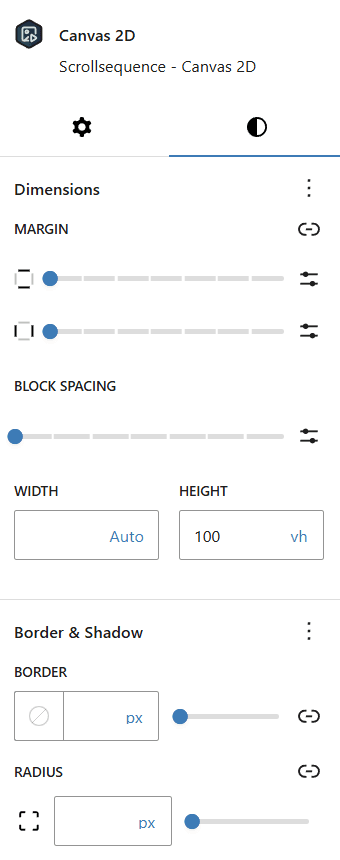
The Styles panel allows you to customize the appearance and layout of the Canvas 2D block.
- Dimensions: Set width, height, margin, and spacing.
- Border & Shadow: Optional styling for borders and shadows.
Free vs Premium Features
Free version applies limits to the number of media groups and media items per group.
- 3 media groups max
- 100 media items per group max
If you have more complex animations, consider upgrading to the premium version for unlimited media groups and items, along with additional features and priority support.
FAQ / Troubleshooting
Q: How do I adjust the animation speed?
A: Modify the ScrollWeight setting for each media group. When nested inside a Scene or Container block, the parent block’s height setting will also affect speed.
Q: My images/videos are not displaying.
A: Check that your media group is set up correctly and that files are supported.
Q: Can I use both images and videos?
A: Yes, you can mix media groups on the same canvas.
Q: How do I optimize performance?
A: Use appropriately sized media and limit the number of images and media groups.
Q: Can I use external image URLs?
A: Yes, use the URL Image List media group type.