Scene Block (Sticky & Fixed)
The Scene block is a core layout block in Scrollsequence 2, designed to control how content is positioned and animated within the scene as users scroll. It supports both Sticky and Fixed positioning, enabling advanced scroll-based effects and layouts.
The Scene block acts as a container that manages the position, height, and scroll-triggered behavior of its child blocks. It is typically used inside the Scrollsequence Container block.
Key Controls
- Flow Positioning: The content naturally flows with the rest of the page.
- Sticky Positioning: Keeps content in view as the user scrolls, until a certain point.
- Fixed Positioning: Pins content to a fixed spot in the scene, regardless of scroll.
- Height: Sets the height of the Scene block, determining how much vertical space it occupies.
- Duration: Define how long (in pixels or other units) the sticky/fixed effect lasts.
- Top: Adjust the top offset position of the Scene block within the viewport.
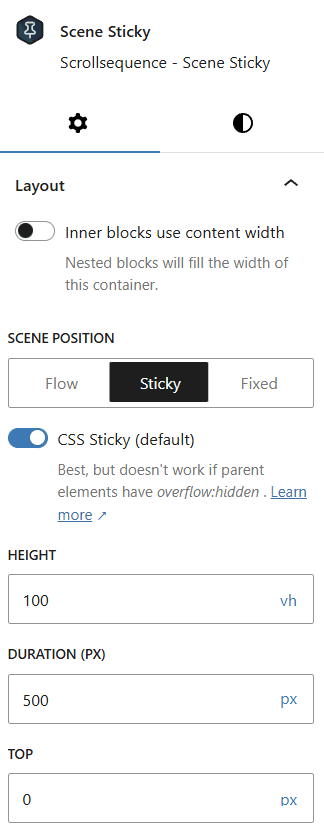
Inner Blocks of Scene Block
The Scene block can contain any other blocks as its inner content. The direct child blocks will be positioned absolutely on top of each other.
The direct child blocks are positioned using the following vertical and horizontal alignment matrix controls
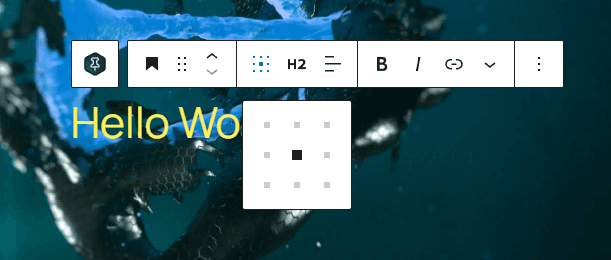
In case you want to position multiple blocks relative to each other inside the Scene block, you can use a Group block as a direct child of the Scene block, and then position the inner blocks inside the Group block using normal flow layout.
Wrapper Positioning
You can also set the scecne blocks wrapper position usign the following controls:
- Wrapper Position: Choose between
Default,Relative, andAbsolutepositioning for the Scene block’s wrapper. - Wrapper Top: Adjust the top offset of the Scene block’s wrapper.
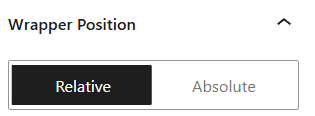
This is particually useful, when you want to display a Scene block at a specific position within the Container block, or any other relatively positioned parent element. For example to place the scene on a background, while other content naturally scrolls above it.
Block Variations
Flow Scene Block
Content inside Flow Scene Block flows naturally with the rest of the page content without any special positioning behavior.
Sticky Scene Block
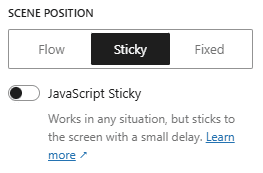
Content placed inside Sticky Scene Block will behave in a similar way as CSS position:sticky .
If your theme is using overflow:hidden which breaks the behavior of position:sticky, use Javascript Sticky option to use Javascript pinning to pin the block to the scene
Fixed Scene Block
Fixes the contents of the block to the scene and uses CSS clip path to clip the bottom or top of the container to make it look as if it is being revealed by scrolling
Content inside Fixed Scene Block is aligned to the center and the common use case is to animate the autoAlpha property on it to show and hide it on scroll.
Scroll Trigger Controls
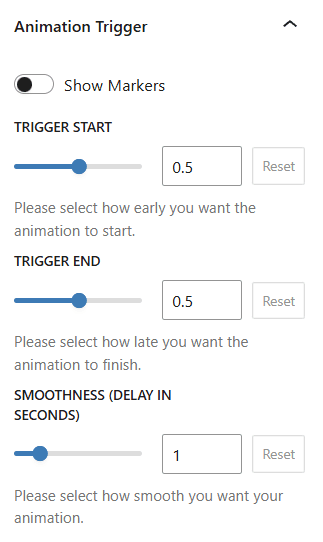
Nested blocks inside the Scene block inherit scroll trigger animation controls. You can use them to precisely control when animations start and end based on scroll position.
You can also display markers to visualize the scroll trigger points for debugging and fine-tuning your animations.
Usage
-
Add the Scene Block:
Insert the Scene block inside a Scrollsequence Container block. -
Choose Positioning:
- Flow: Content scrolls naturally with the page.
- Sticky: Content stays in view while scrolling until a defined duration.
- Fixed: Content remains fixed in the scene regardless of scroll.
-
Configure Height and Duration:
- Set the block’s height and the scroll duration for the sticky/fixed effect.
- Choose units (
vh,px,%, etc.) as needed.
-
Advanced Options:
- Use
markersandsmoothnessfor debugging and fine-tuning animations.
- Use
Example Use Cases
- Sticky Hero Section: Keep a hero image or animation visible as the user scrolls.
- Fixed Call-to-Action: Pin a CTA or navigation element to the scene.
- Layered Animations: Combine “Send Behind Content” with other blocks for parallax or depth effects.
Tips
- The Scene block is intended to be used as a child of the Container block.
- Use the Inspector Controls in the block editor sidebar to adjust all settings.
- For best results, experiment with different combinations of height, duration, and positioning.